Leads
The leads board: search and dates, three counters, and one column per stage.
Steps as text
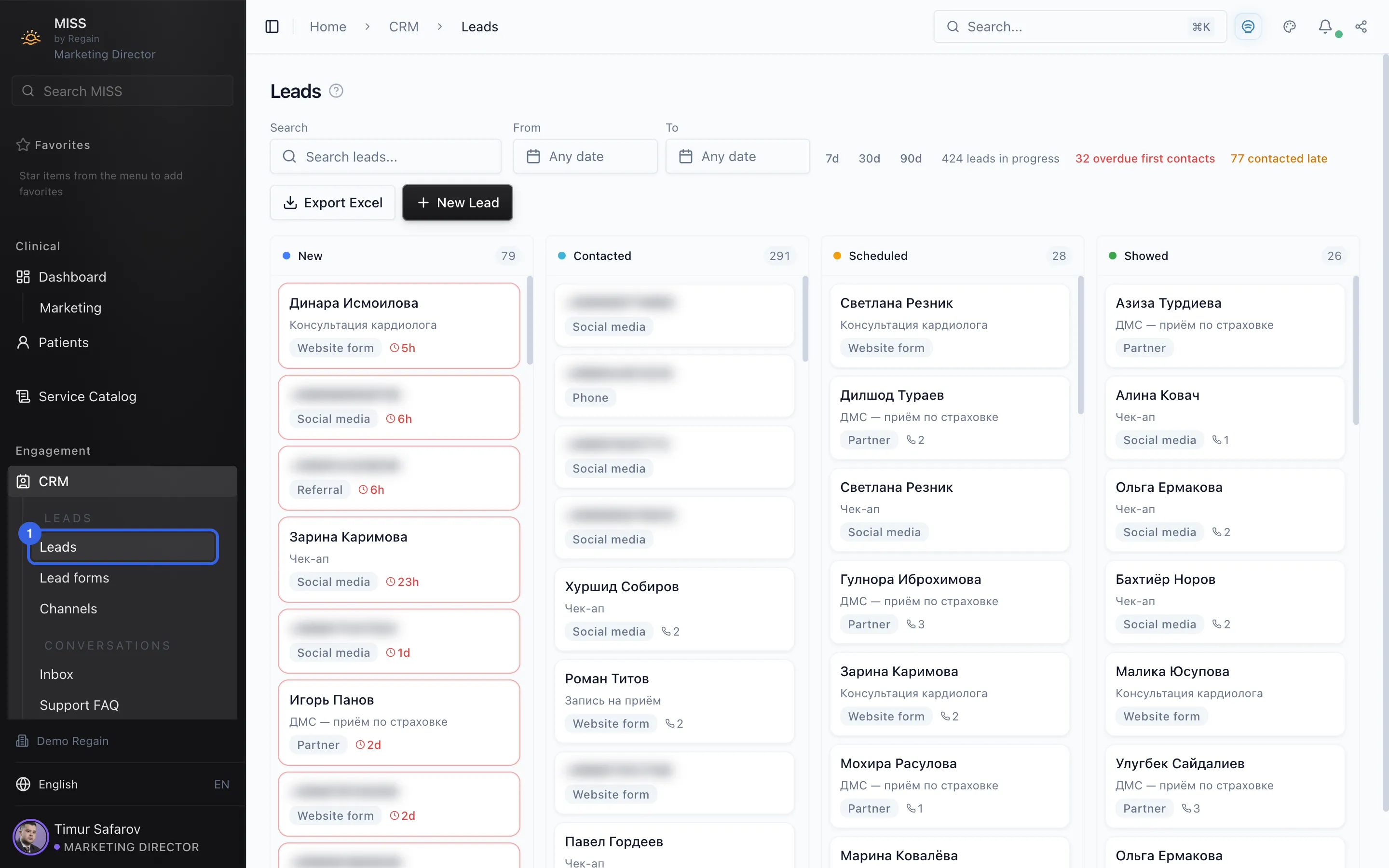
- Under CRM in the side menu, open Leads.
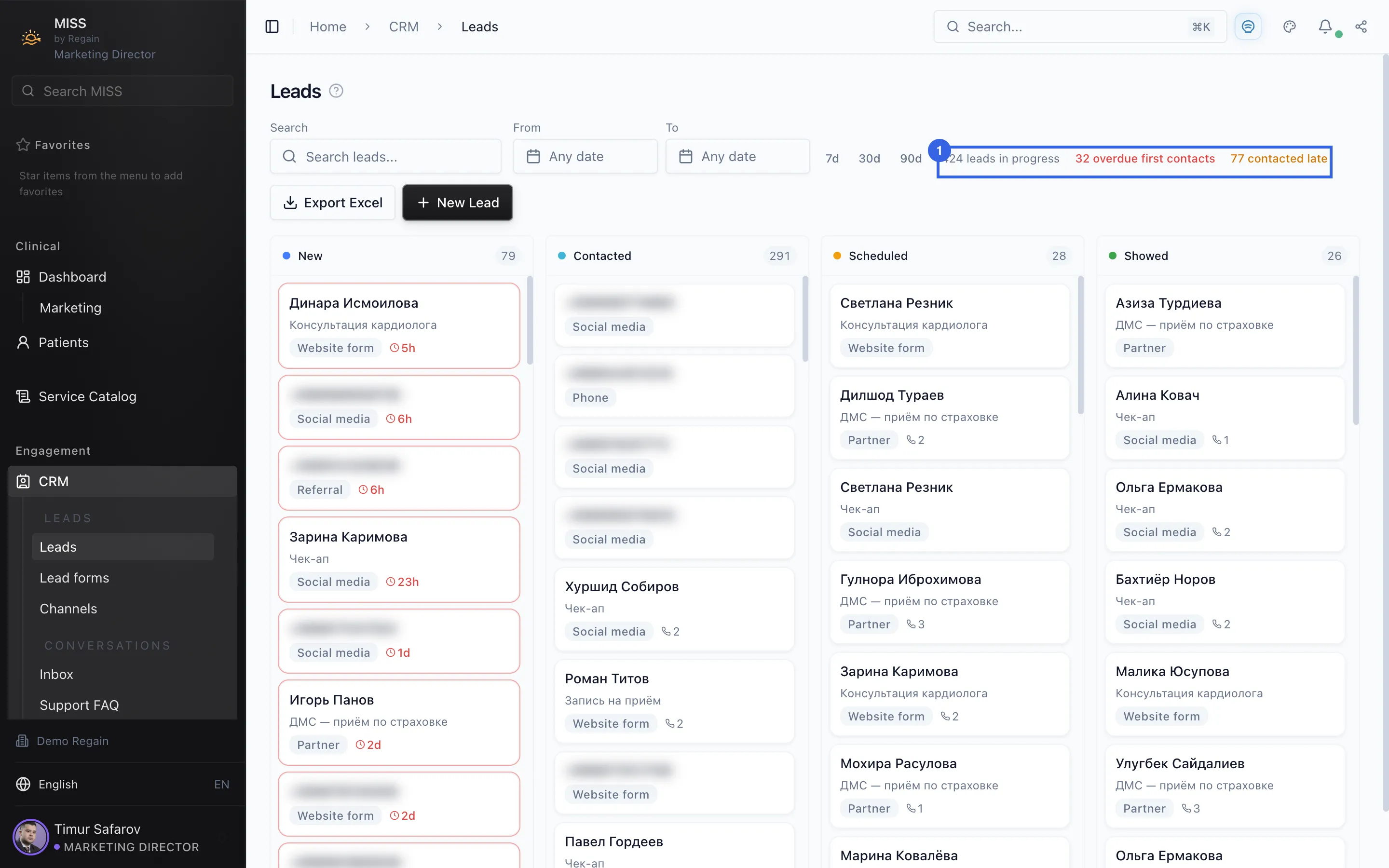
- The page also shows three counters: leads in progress, overdue first contacts and contacted late.
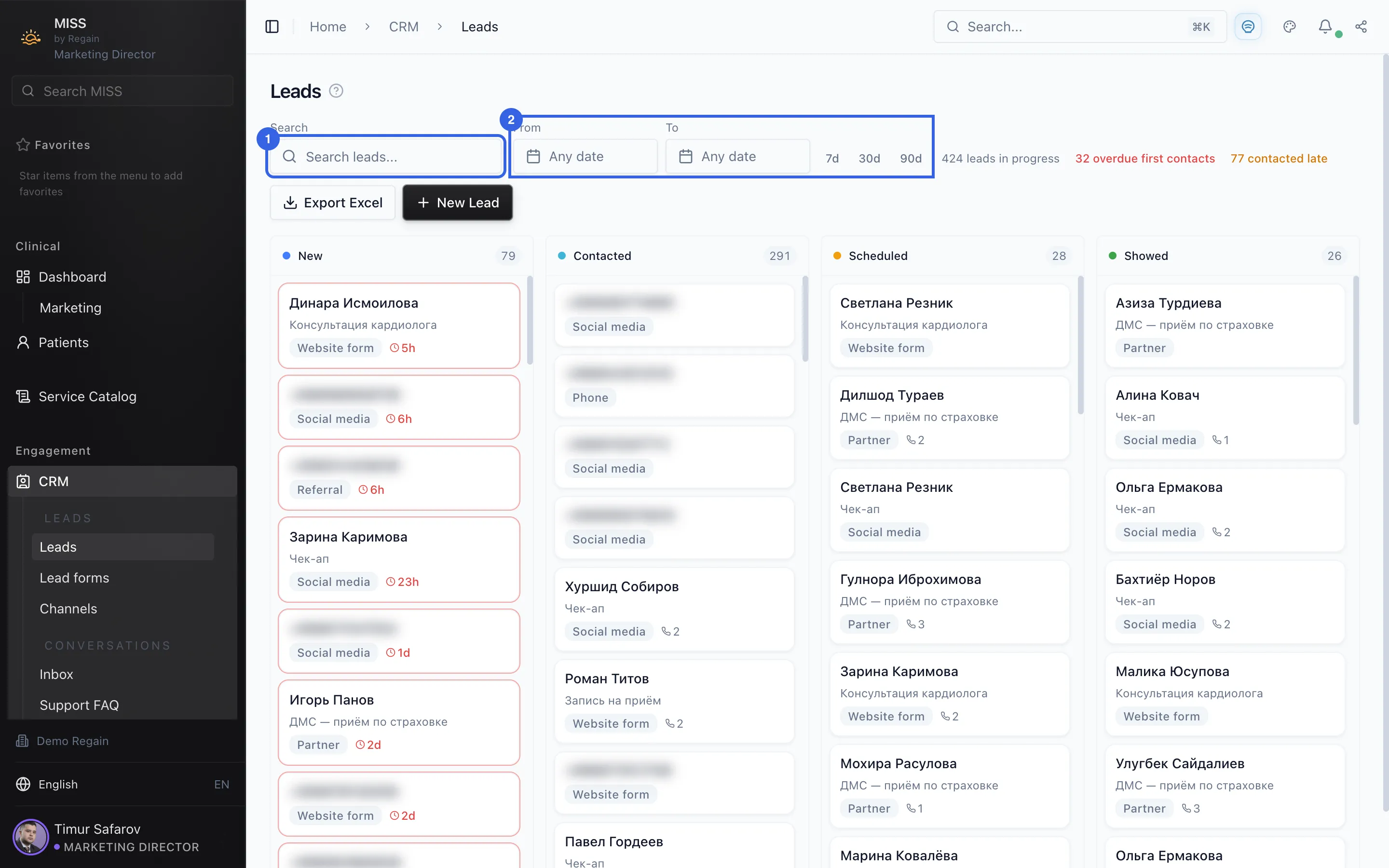
- At the top are the Search box (1) and the From and To dates with the 7d, 30d and 90d buttons (2). Below them are the Export Excel and New Lead buttons.
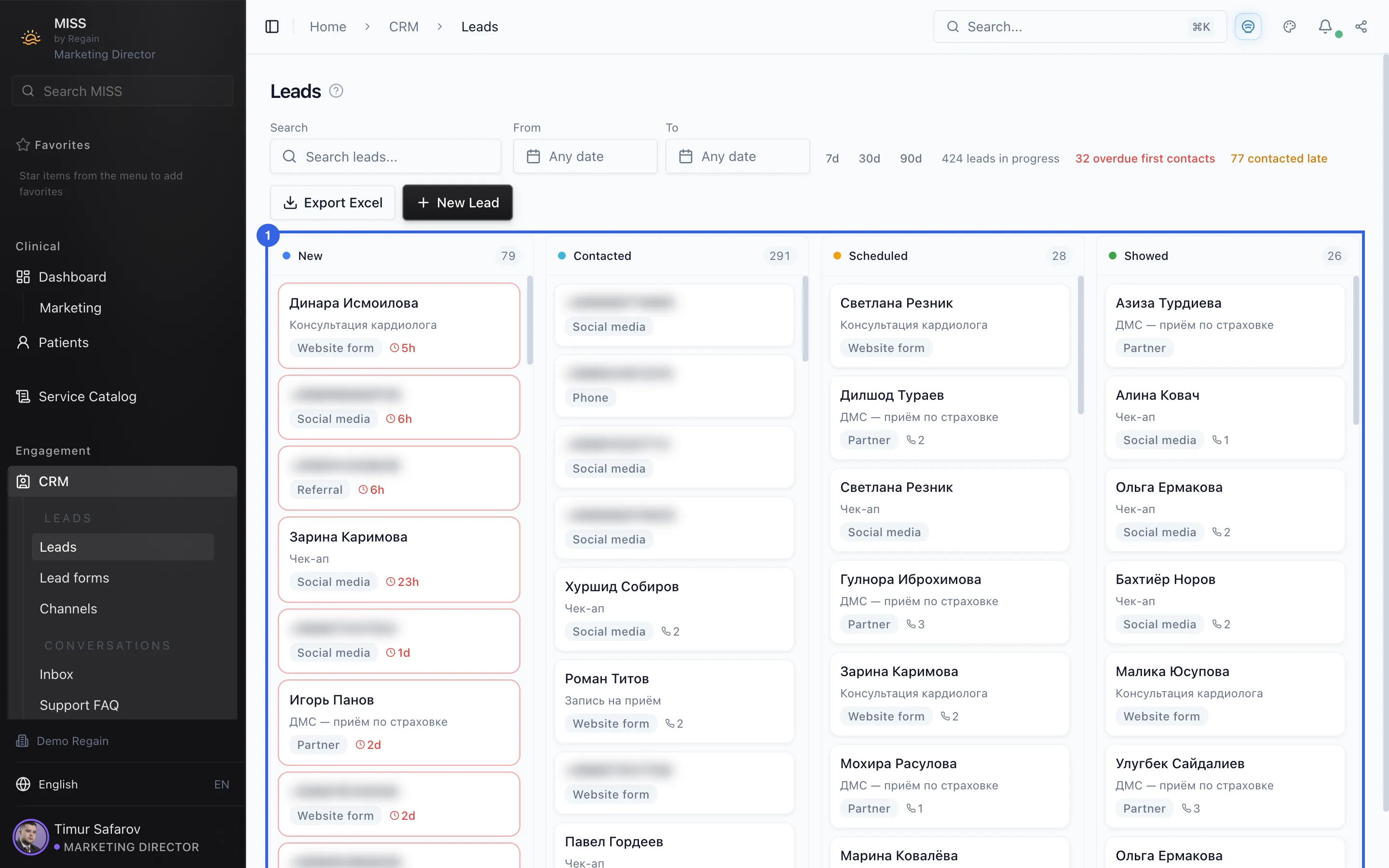
- The board has columns including New, Contacted, Scheduled and Showed, each with a number. A card shows a name or phone number, a line of text and a label such as Website form.
The Leads page shows the clinic's leads as cards on a board.
- Under CRM in the side menu, open Leads.
1 - The page also shows three counters: leads in progress, overdue first contacts and contacted late.
2 - At the top are the Search box (1) and the From and To dates with the 7d, 30d and 90d buttons (2). Below them are the Export Excel and New Lead buttons.
3 - The board has columns including New, Contacted, Scheduled and Showed, each with a number. A card shows a name or phone number, a line of text and a label such as Website form.
4
Screenshots captured on 2026-10-03